We've released a powerful new feature that lets you seamlessly integrate your JijZept Serve resources into AI conversations. Now you can browse, preview, and attach your optimization resources directly from the sidebar.
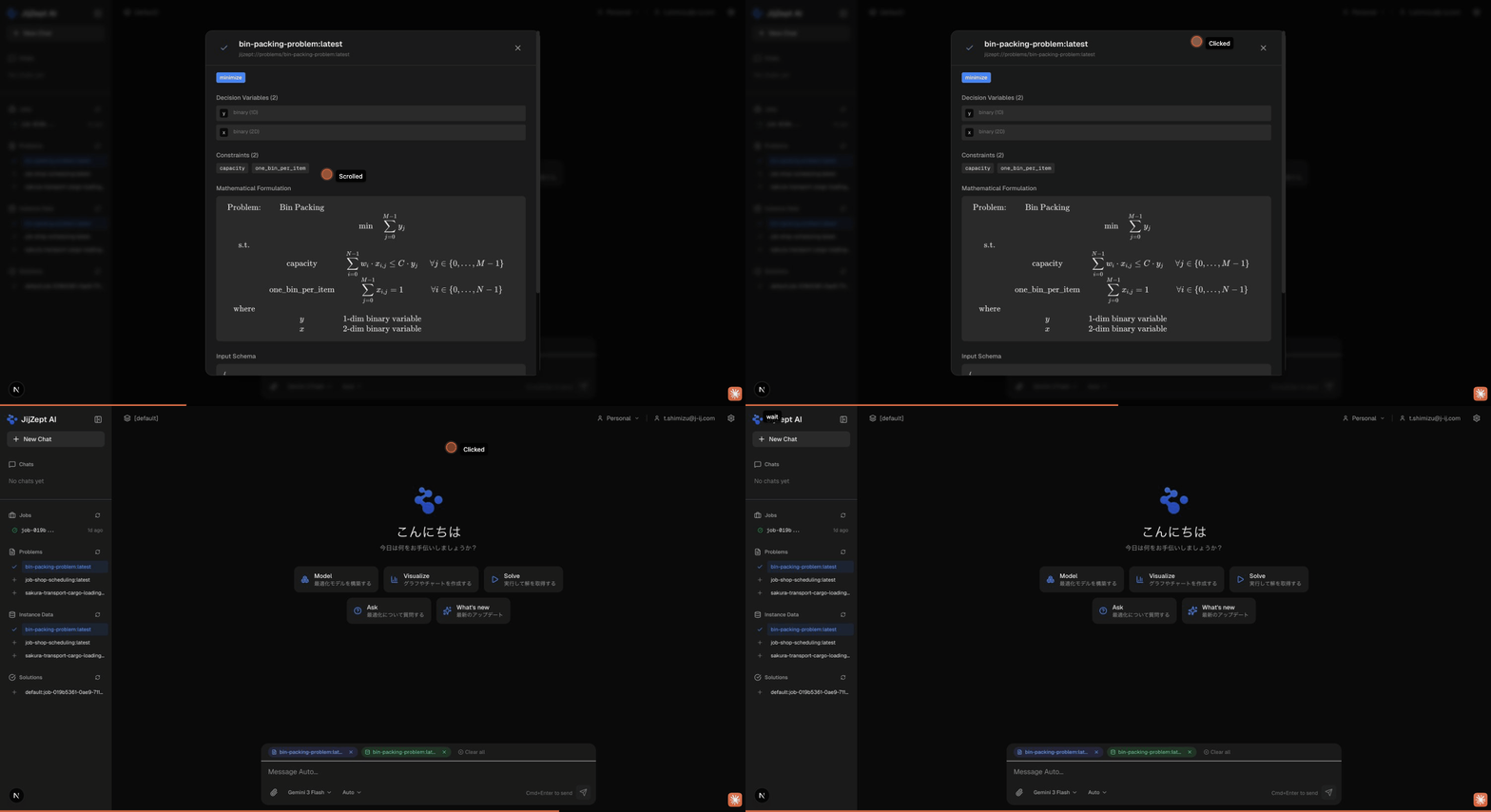
Browse Resources from the Sidebar
The left sidebar now displays all your JijZept Serve resources organized into four collapsible sections:
- Jobs: View your optimization job history with status indicators (queued, running, succeeded, failed)
- Problems: Browse your mathematical optimization problem definitions
- Instance Data: Access your problem instance data sets
- Solutions: Review your optimization solutions
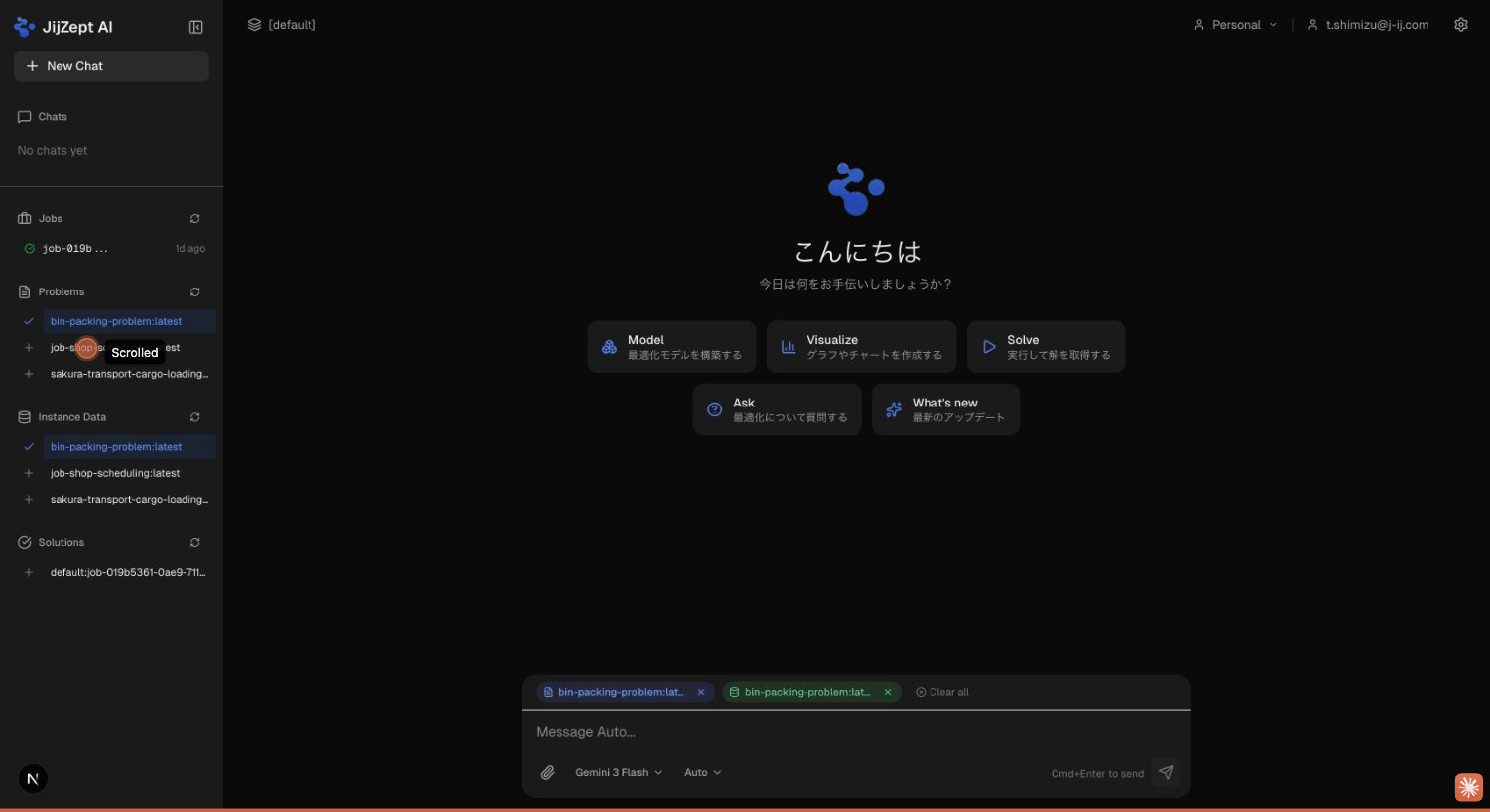
Each section includes a refresh button to manually update the resource list. Initially, each section displays up to 5 items with a "Show more" option to expand the full list.
Attach Resources to Chat
Click the + button next to any resource to attach it as context for your conversation. A checkmark (✓) appears to indicate attached resources. Attached resources appear as colored chips above the message input area:
- Blue chips: Problem resources
- Green chips: Instance Data resources
- Orange chips: Solution resources
- Purple chips: Job resources
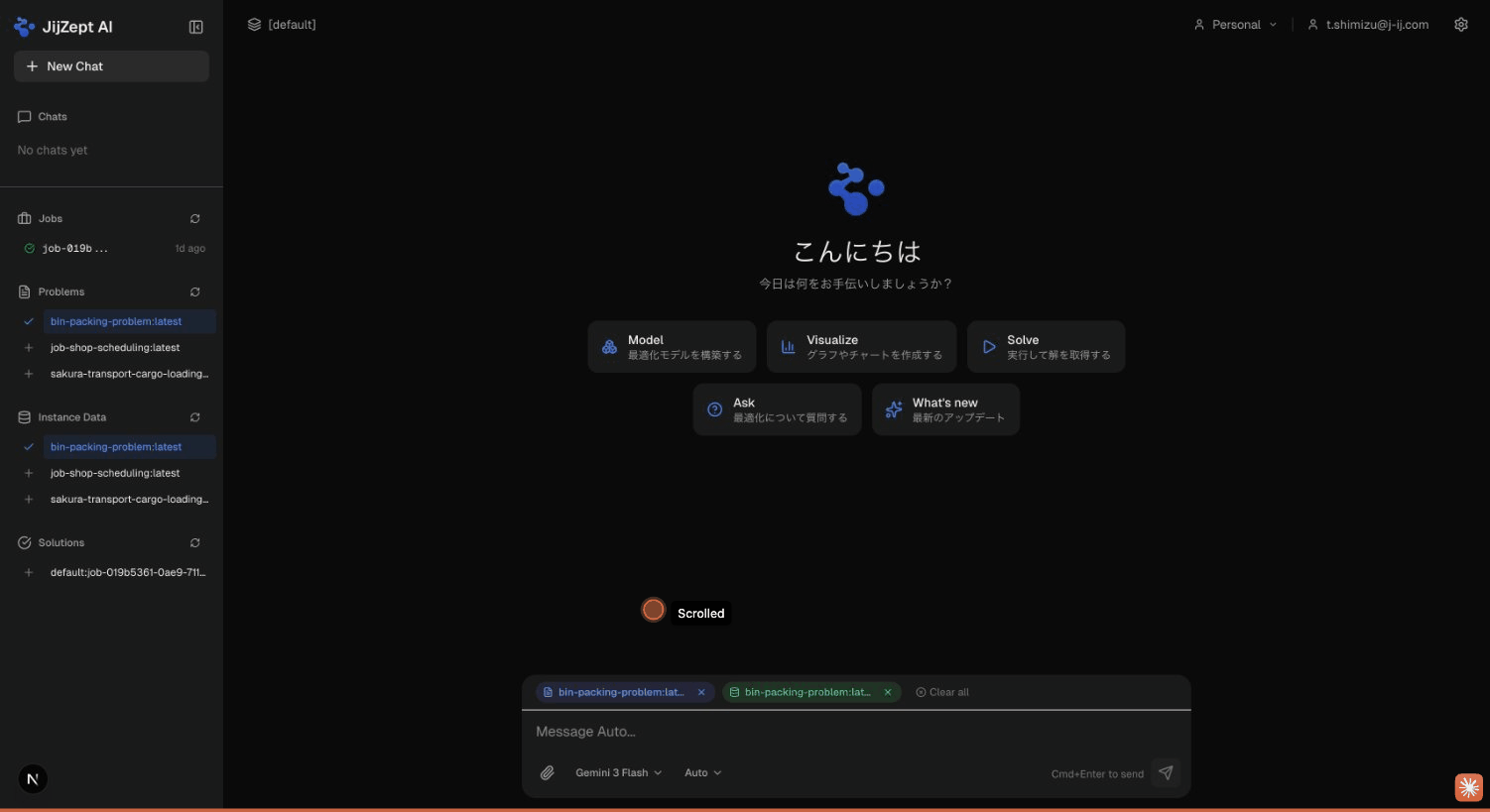
You can remove individual resources by clicking the × on each chip, or use the "Clear all" button to detach everything at once.
Use cases:
- Attach a Problem to ask "Explain the constraints in this optimization model"
- Attach Instance Data to ask "What's the scale of this problem instance?"
- Attach a Solution to ask "Is this solution optimal? What's the objective value?"
- Attach multiple resources to compare or analyze relationships
View Resource Details
Click on any resource name to open a detailed modal view. The modal provides comprehensive information depending on the resource type:
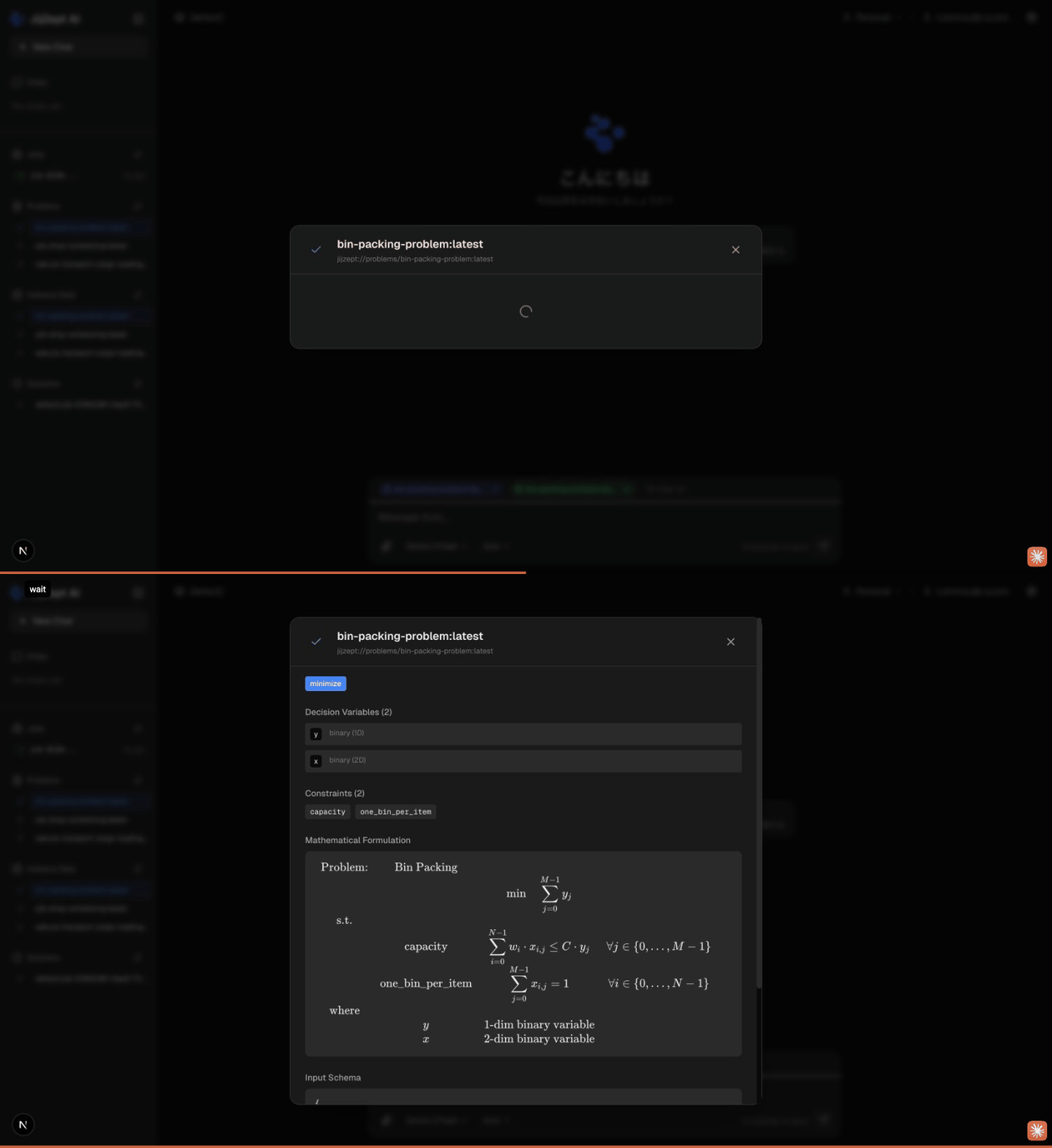
Problem Details
- Objective sense: Minimize or Maximize badge
- Decision Variables: Variable names, types (Binary, Integer, Continuous), and dimensions
- Constraints: List of constraint names and descriptions
- Mathematical Formulation: Full LaTeX-rendered mathematical model
- Input Schema: Expected data structure for instance data
Instance Data Details
- Content Type: MIME type of the data
- JSON Payload: Formatted view of the instance data
Solution Details
- Feasibility Status: Whether the solution is feasible
- Objective Value: The optimal/best objective function value
- Variable Assignments: Values assigned to each decision variable
You can attach or detach a resource directly from the detail modal using the button in the modal header.
Load Resources in Python
JijZept AI can load your attached resources directly into the Python sandbox for analysis:
# Load a problem as jm.Problem object
problem = get_problem("jijzept://problems/my-problem:latest")

# Load instance data as a dictionary
data = get_instance_data("jijzept://instance-data/my-data:latest")
This enables powerful workflows where you can analyze, modify, or re-solve problems with different parameters—all within your AI conversation.
Get Started
- Navigate to the JijZept AI chat interface
- Look for the "JijZept Serve Resources" section in the left sidebar
- Click the + button to attach resources to your conversation
- Send a message with your attached resources as context
The AI will have full access to your attached resource details and can help you analyze, explain, or work with your optimization problems more effectively.